To link a bank account, log into your Circle Mint account.
If your bank is located within the United States, you can follow the steps below or skip ahead for instructions to link Circle Mint to a bank account located in another country.
1. Navigate to Settings from the sidebar menu. 
2. From within Settings, select Bank Accounts under Transactions in the sidebar.
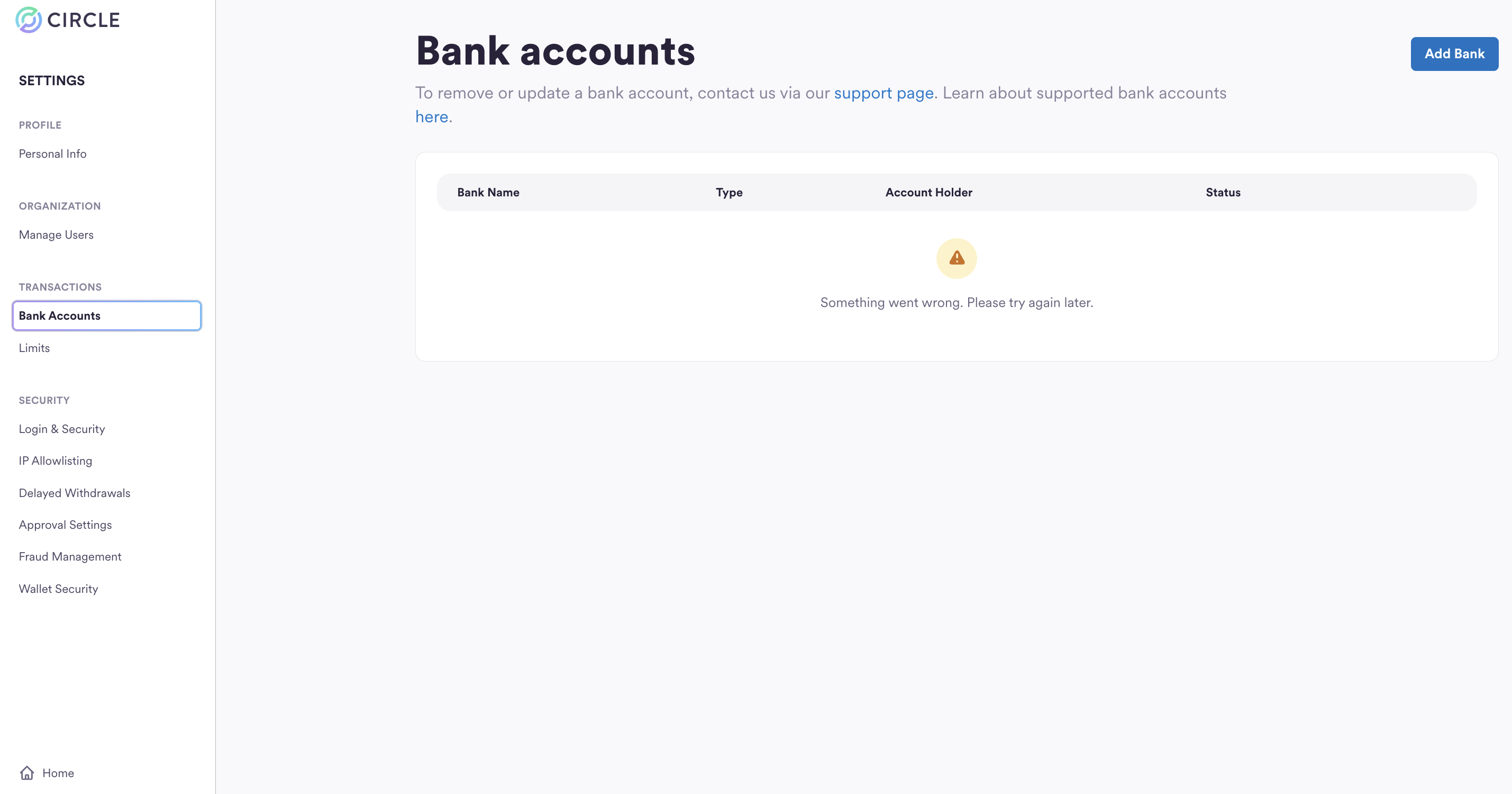
3. Select Add Bank from the upper right-hand corner.
4. Select your bank account location.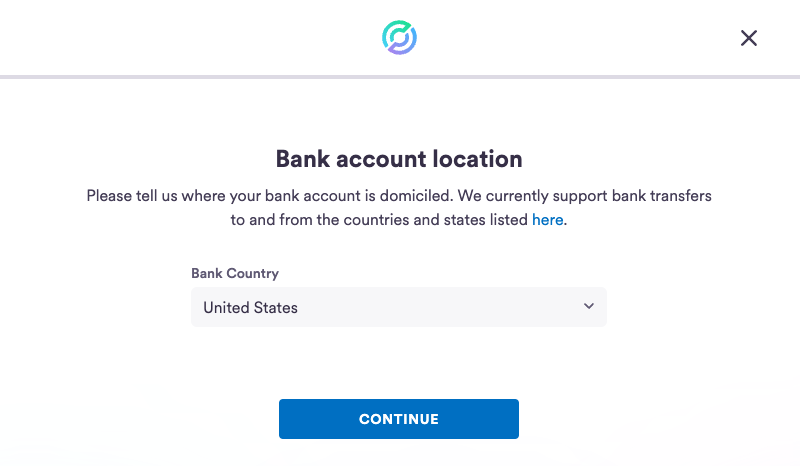
5. Choose your bank type.
6. Enter your bank account information. 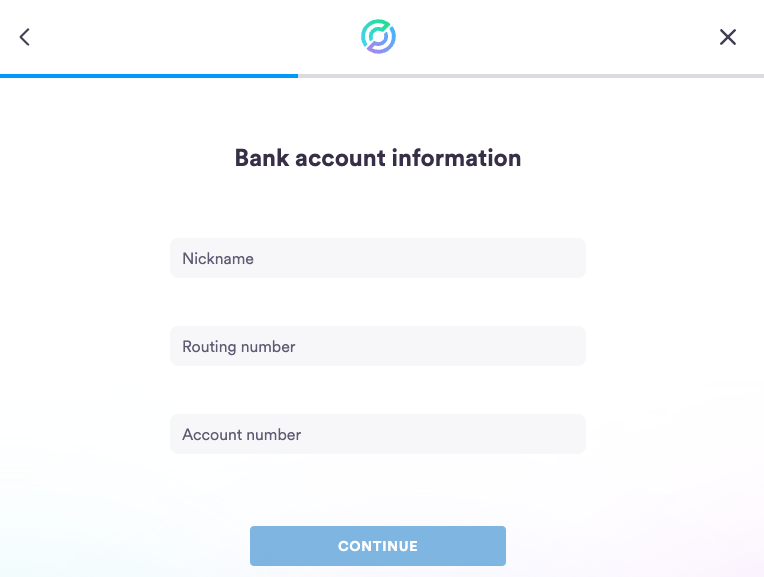
7. Enter your account holder's name and address associated with the bank account you're adding. Please avoid using PO Box addresses and provide a physical address associated with the account. The details you provide below must match the details on your bank account statement; otherwise, wires for this account may be rejected. Please review our fee schedule here to learn more about our conditions.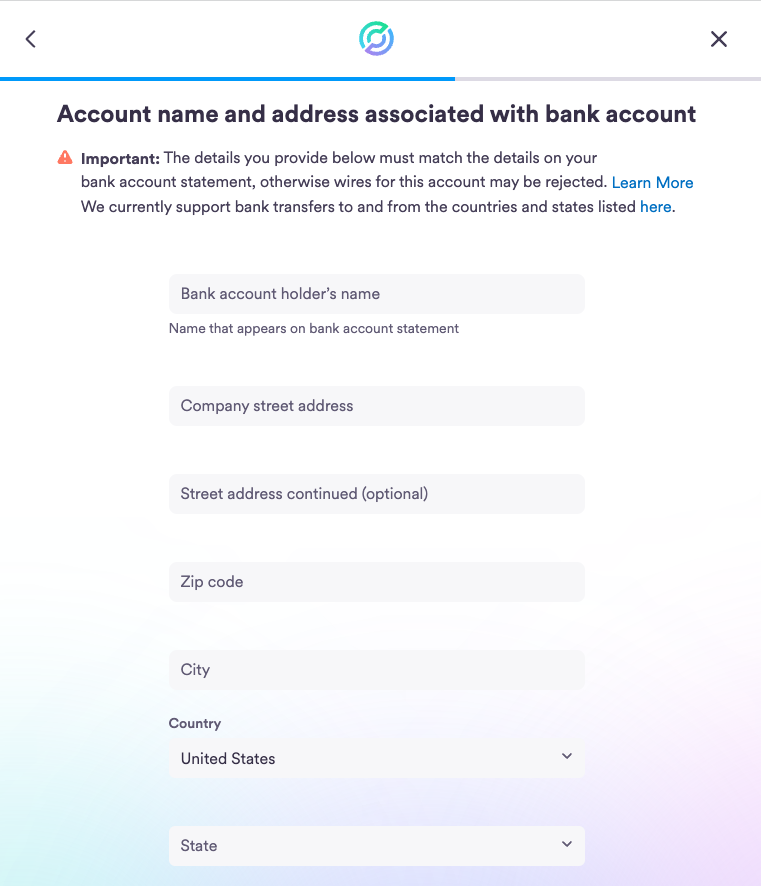
8. Enter your 2MFA code.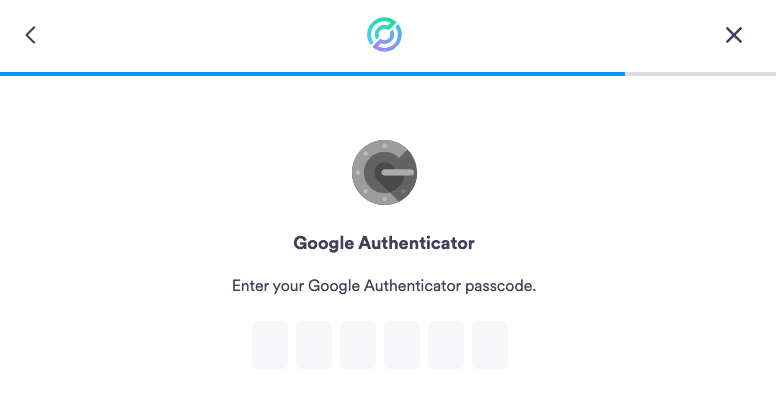
You have successfully linked your bank account.
Linking a non-US bank account to Circle Mint
You must link your bank account to Circle Mint to begin transacting.
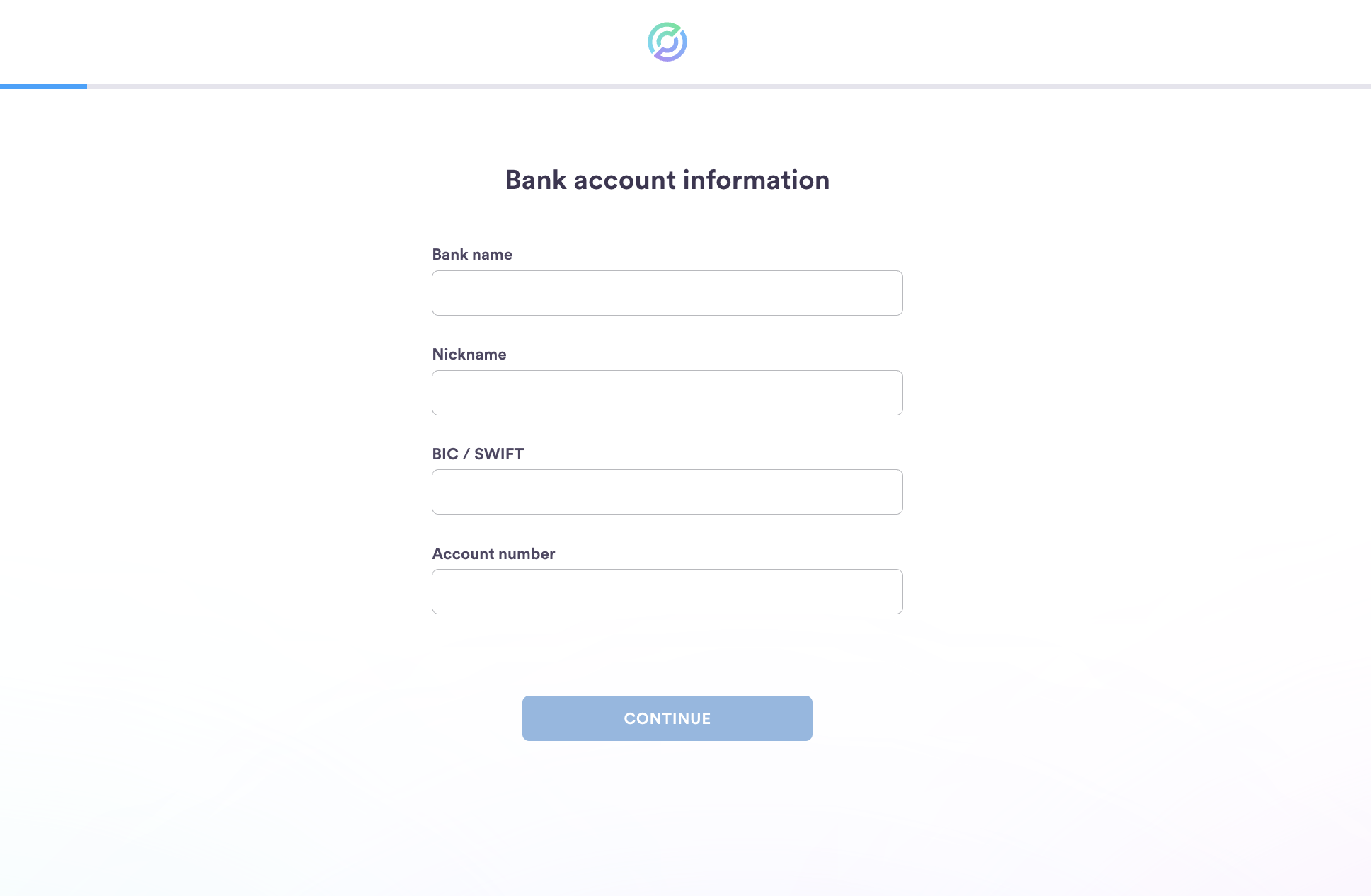
1. Navigate to Settings in the left-hand sidebar.
2. Select Add Bank at the top right of the screen.

3. Select your country from the dropdown list and input your bank’s city.
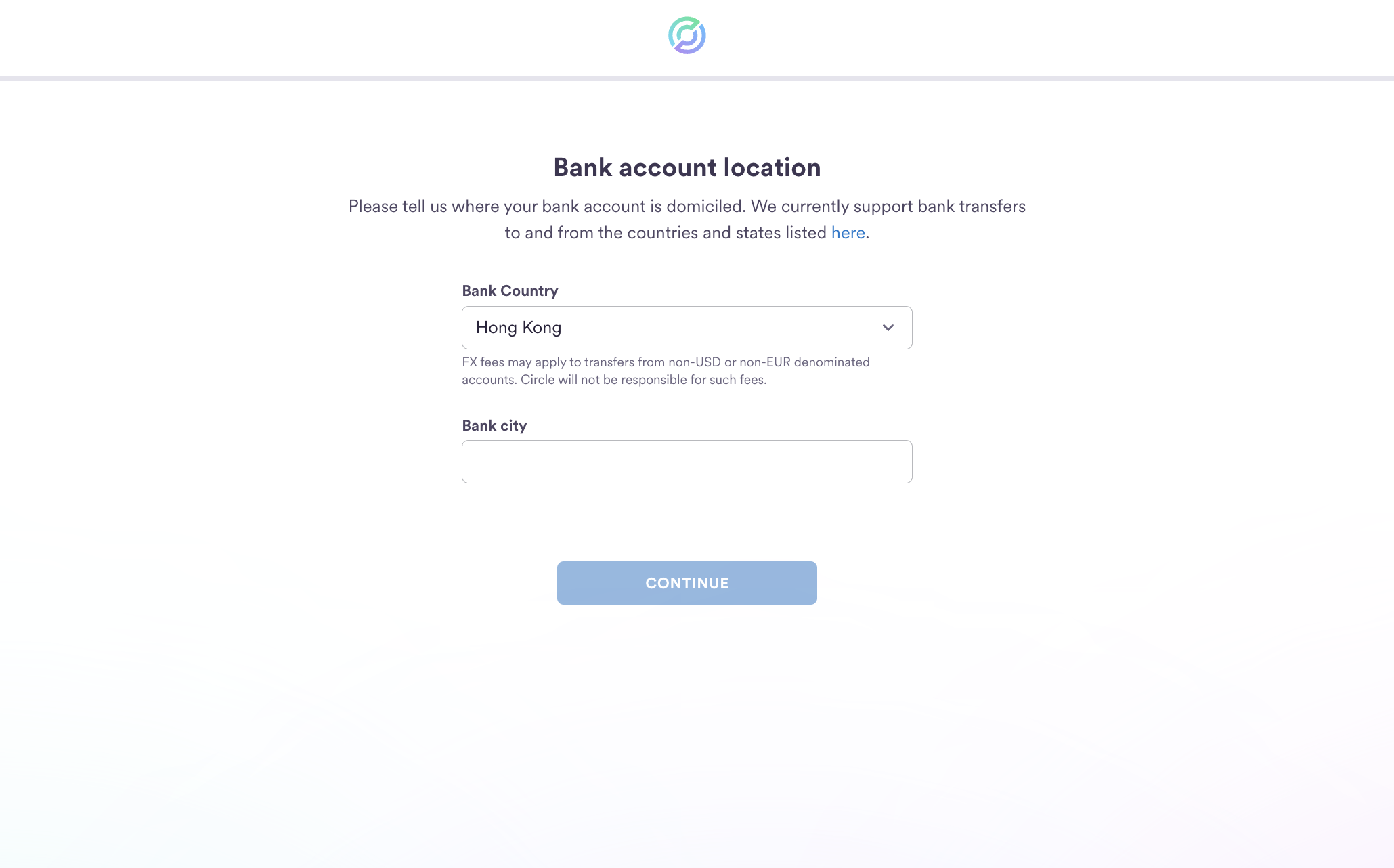
4. Enter your bank’s specific information into the provided fields and select Continue to finish the linking process.